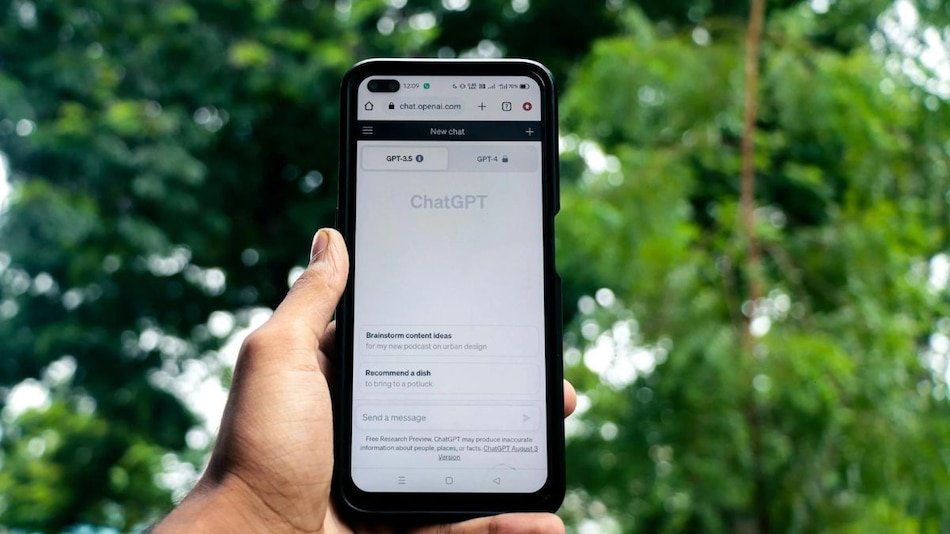
ChatGPT has become an essential tool for millions of users around the world. Some people use it for productivity and work-related tasks, while others rely on it for learning new skills, researching topics, or generating creative ideas. As the number of conversations grows over time, users may eventually want to manage or remove certain chats—especially if they contain sensitive information or personal details.
If privacy is important to you, you may prefer not to keep certain conversations stored in your account history. Fortunately, ChatGPT provides several options that allow users to manage their chats efficiently. You can either delete chats permanently, archive them to keep your workspace organized, or use temporary chats that automatically disappear after use.
Understanding how these features work can help you maintain better control over your data while keeping your ChatGPT interface clean and organized.
What Is ChatGPT Chat History?
Chat history in ChatGPT refers to the list of conversations displayed in the sidebar of the interface. Each time you start a new conversation with the AI, a new chat session is created and saved in your account’s history. This allows users to easily return to previous discussions and continue conversations without losing context.
According to OpenAI, chat history helps maintain conversation continuity and improve user experience. When a conversation is saved, users can reopen it at any time and continue interacting with the AI using the previous context.
However, users still have full control over how their conversations are managed. You can remove chats permanently, archive them to keep your main list uncluttered, or start temporary chats that are automatically removed after the session ends.
These options make it easier to manage large numbers of conversations while also maintaining privacy and organization.
| Chat Management Option | What It Does | Best For |
|---|---|---|
| Delete Chat | Permanently removes the conversation from your account | Removing sensitive or unnecessary chats |
| Archive Chat | Hides the chat from the main list but keeps it stored | Organizing conversations without deleting them |
| Temporary Chat | Automatically deletes conversations after the session ends | Private or short-term interactions |
How to Remove Chats from ChatGPT
Deleting a chat permanently removes it from your chat history. Once a conversation is deleted, it cannot be recovered through the ChatGPT interface or the application programming interface (API). For this reason, users should ensure they no longer need the information before deleting a conversation.
Follow these steps to delete a chat from the ChatGPT website:
- Open ChatGPT and log into your account.
- Locate the chat you want to remove from the sidebar.
- Hover over the conversation title.
- Click the options icon (usually represented by three dots).
- Select the Delete option.
- Confirm the deletion to permanently remove the chat.
The process on the mobile app is similar, although the interface may look slightly different depending on the device. Mobile users can delete chats by long-pressing the conversation in the chat list and selecting the delete option from the menu.
Once deleted, the conversation will disappear from the chat list and cannot be restored.
How to Archive Chats in ChatGPT
Archiving chats is different from deleting them. Instead of removing a conversation permanently, archiving simply hides the chat from your main chat list. The conversation remains saved in your account and can be accessed later from the archive section.
This feature is especially useful for users who want to keep certain conversations for future reference without cluttering their active chat workspace.
To archive a chat on the ChatGPT website, follow these steps:
- Open ChatGPT and go to the sidebar containing your conversations.
- Find the chat you want to archive.
- Click the options menu beside the chat title.
- Select the Archive option.
Once archived, the conversation will disappear from the main chat list but will remain stored in the archive section of your account.
The process for archiving chats on the mobile app is slightly different. Users typically need to long-press the chat in the list and choose the archive option from the menu that appears.
If needed, archived chats can be restored and moved back to the main chat list at any time.
Using Temporary Chats for Better Privacy
Apart from deleting or archiving chats, ChatGPT also offers another useful feature called temporary chat. Temporary chats allow users to start a conversation that will not be saved in the chat history.
When this mode is activated, the conversation will automatically disappear after the user starts a new chat or navigates to a different conversation.
Temporary chats also do not retain user data, preferences, or memory from previous interactions. This makes them ideal for situations where users want to discuss sensitive topics without storing the conversation in their account history.
To enable temporary chat, users can tap the chat icon located at the top-right corner of the interface when starting a new conversation.
Why Managing Chat History Is Important
Managing your chat history regularly can help improve both privacy and productivity. By deleting unnecessary conversations, archiving important ones, and using temporary chats when needed, users can keep their ChatGPT workspace organized and secure.
These features also allow users to maintain better control over their data while ensuring that only relevant conversations remain easily accessible.
Whether you are using ChatGPT for professional work, research, or casual learning, understanding how to manage chats effectively can significantly improve your overall experience on the platform.
For breaking news and live news updates, like us on Facebook or follow us on Twitter and Instagram. Read more on Latest Technology on thefoxdaily.com.






COMMENTS 0