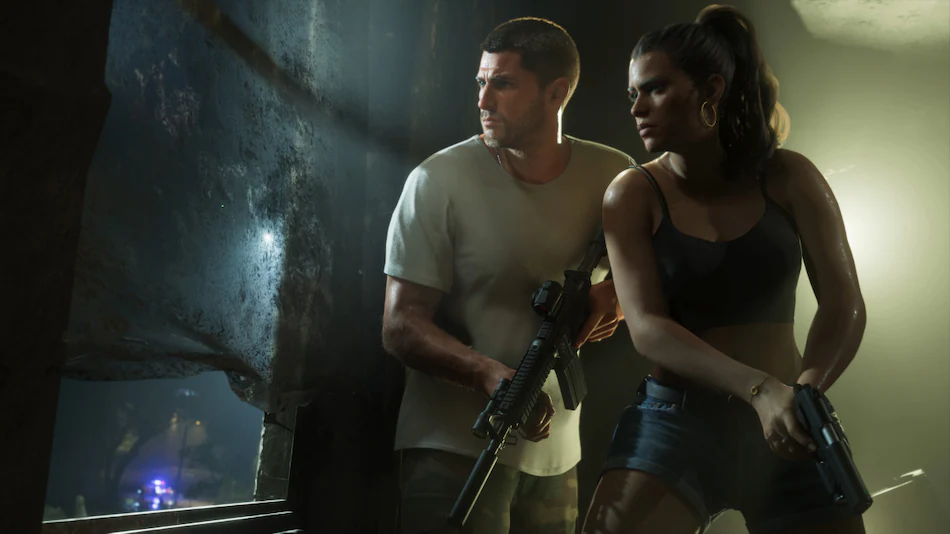
GTA 6 is particularly demanding in terms of storage, and its large installation size makes preparation important. Rockstar’s official pre-load information specifies that the game can require up to 212GB, depending on the console. PlayStation users also need to install a mandatory system software update before playing.
Here are 10 essential things to check on your PS5, PS5 Pro or Xbox Series X|S before starting Grand Theft Auto 6.
1. Clean Your Console Before Starting GTA 6
Before installing or playing GTA 6, give your console a proper external cleaning. Dust accumulation around the ventilation openings can restrict airflow and contribute to higher operating temperatures during demanding gaming sessions.
Both PlayStation 5 and Xbox Series X|S consoles use cooling systems designed to manage heat generated by their internal components. When ventilation becomes obstructed, the cooling system may have to work harder to maintain suitable operating temperatures.
Start by checking the following areas:
- Air intake and exhaust vents.
- External fan ventilation openings.
- Areas around the console where dust accumulates.
- Console surfaces and surrounding entertainment furniture.
Use a soft, dry microfiber cloth to clean external surfaces. For ventilation openings, use appropriate dust-removal methods recommended by the console manufacturer. Always switch off and unplug the console before cleaning.
Avoid spraying liquids directly onto the device or using excessive force around ventilation openings. You should also avoid opening the console unless you understand the manufacturer’s maintenance instructions.
Cleaning will not increase your console’s processing power, but maintaining unobstructed ventilation can help its cooling system operate as intended.
2. Keep Airflow Unobstructed During Long Gaming Sessions
Cleaning your console is only half the job. Its placement also matters.
Many people place their gaming consoles inside entertainment cabinets, TV units or enclosed shelves to maintain a clean living-room setup. However, a cramped space can restrict the movement of hot air and make cooling less effective.
Before playing GTA 6, check whether your console has enough space around its ventilation areas.
For the PS5, pay particular attention to the rear exhaust area and other ventilation openings. For Xbox Series X|S, make sure the main ventilation areas, including the top exhaust on the Series X and the designated exhaust area on the Series S, remain unobstructed.
Follow the clearance recommendations in your console’s official instructions rather than placing it directly against walls or other objects.
Also consider these practical points:
- Do not place objects directly over ventilation openings.
- Avoid enclosed cabinets without adequate ventilation.
- Keep the console away from direct sunlight and heat sources.
- Do not place other heat-generating electronics immediately against it.
- Make sure the console sits on a stable, appropriate surface.
GTA 6 features a large open world that may encourage extended gaming sessions. Good ventilation helps reduce the risk of unnecessary thermal stress during prolonged use.
3. Free Up at Least 212GB of Storage Space
Storage is arguably the most important preparation step for GTA 6.
According to Rockstar Games’ official pre-load announcement, Grand Theft Auto VI can require up to 212GB of storage space, depending on the console.
That is a substantial amount of space, particularly for players who have several large games installed on their PS5 or Xbox.
If your console’s internal SSD is already almost full, you may need to remove older games before installing GTA 6.
Start by checking your available storage and identifying games you no longer play. You can also review saved media, screenshots and gameplay recordings that are taking up unnecessary space.
On PS5: Open Settings, select Storage and review the space occupied by games, applications and media files.
On Xbox Series X|S: Open Settings, navigate to System and select Storage devices to review available space and installed content.
Why You Should Keep Extra Storage Available
Although Rockstar specifies up to 212GB for pre-loading, it is sensible not to fill the entire SSD with the game.
Keeping some additional free space gives you flexibility for future game updates, downloadable content, temporary installation requirements and captured gameplay clips.
Remember that uninstalling a game is not necessarily the same as deleting its saved progress. Check the save-data options carefully before removing anything important.
If you regularly play multiple large games, an additional compatible SSD or supported external storage solution may also be worth considering. However, check the console’s storage compatibility requirements before purchasing an expansion drive.
4. Enable Cloud Saves to Protect Your GTA 6 Progress
Imagine spending several hours exploring Vice City, completing missions and progressing through the storyline, only to discover that your latest save is unavailable after an unexpected console shutdown.
Cloud saves can help reduce the risk of losing progress when supported by your console account and game.
On PlayStation, cloud storage for saved data is available through an eligible PlayStation Plus subscription. Players should check their saved-data synchronisation settings and confirm that the relevant data has uploaded successfully.
On Xbox, supported game saves can synchronise through Xbox network services when you play using your account. Make sure you are signed in and connected to the internet so that synchronisation can take place.
Why Save Synchronisation Matters
Cloud saves are particularly useful if you use multiple consoles or need to restore your progress after replacing or resetting a device.
However, cloud synchronisation should not be treated as an instant backup of every action. Uploading can take time, and an interrupted connection may delay the process.
Before beginning a long GTA 6 session, check that your console is connected to the internet and that any available saved-data synchronisation has completed.
It is also a good idea to avoid switching off the console or disconnecting its power while the game is saving.
5. Update Your Console Firmware Before Launching GTA 6
This is one step PlayStation 5 owners should not overlook.
Sony has released a mandatory PS5 system software update ahead of the GTA 6 launch. The update carries version number 26.07-14.23.00 and is required before players can access the game.
Sony announced the requirement shortly before the November 19 launch, advising players to install the update in advance rather than waiting until they are ready to play.
The update includes security fixes to the system software. Sony has not publicly provided a detailed explanation of why this particular firmware version is required specifically for GTA 6.
How to Update Your PS5
- Turn on your PlayStation 5.
- Open Settings from the home screen.
- Select System.
- Open System Software.
- Select System Software Update and Settings.
- Choose Update System Software and follow the instructions.
If automatic downloads are enabled, the update may already have been installed in the background. Nevertheless, manually checking the installed version is a sensible precaution.
What about Xbox Series X|S? Xbox owners should also check for available system updates through their console settings. Keeping the operating system current helps maintain compatibility, security and overall system stability.
Do not confuse a console firmware update with a game update. They are separate installations, and both may be required before you can start playing.
6. Update Your DualSense or Xbox Wireless Controller
Your console is not the only device that needs attention before playing GTA 6. The controller is equally important because it is the main connection between the player and the game.
PlayStation 5 users should check whether their DualSense controller has the latest available firmware. Xbox players should similarly check for controller firmware updates through the console’s accessories settings.
Keeping controller firmware updated can help maintain compatibility and address known software issues.
How to Check Controller Updates
PS5 DualSense: Check the controller update notification when connecting your controller to the console. Follow the on-screen instructions if an update is available.
Xbox Wireless Controller: Open Settings, navigate to Devices and connections, select Accessories and check the available controller options for firmware updates.
Depending on the controller and console, you may need to connect it using a USB cable to complete the update.
It is also worth checking whether your controller has any physical problems. Sticky buttons, drifting analogue sticks and unreliable wireless connections can become particularly frustrating during driving, shooting and other gameplay activities.
7. Charge Your Controllers and Gaming Accessories
Few things interrupt an exciting gaming session more quickly than a controller battery warning appearing during an important mission.
Before launching GTA 6, make sure your primary controller is fully charged. If you own a second controller, charge that as well so you have a backup available.
For PS5 owners, check the DualSense battery level from the console interface. Xbox wireless controller users should check their battery status and replace or recharge batteries as necessary, depending on the controller model and battery arrangement.
Do not forget other accessories.
- Wireless headphones: Charge your headset before starting a long session.
- Gaming headset microphones: Check microphone functionality if you plan to communicate while streaming.
- Charging cables: Keep a compatible USB cable nearby for emergencies.
- Extra controllers: Make sure your backup controller is ready.
A quick cleaning is also worthwhile. Use a dry microfiber cloth to remove dust and grime from the controller’s surface. Pay attention to the areas around buttons and analogue sticks without allowing moisture to enter the device.
These small preparations can make extended gaming sessions considerably more comfortable.
8. Check Your Internet Connection Before Downloading GTA 6
Even if you own a physical or digital copy of GTA 6, a reliable internet connection remains important.
Players need internet access for activities such as downloading digital game files, installing available updates and synchronising supported online services.
Rockstar’s pre-load announcement also makes it clear that GTA 6 requires substantial storage space, so downloading the game over an unreliable connection could create unnecessary delays.
Wi-Fi vs Ethernet: Which Is Better?
Both Wi-Fi and wired Ethernet connections can work well, but their performance depends on your network equipment and home environment.
A wired Ethernet connection generally offers more consistent connectivity and can reduce interference-related problems. It is particularly useful when downloading large files or streaming gameplay.
Wi-Fi is more convenient because it does not require a physical network cable. However, performance can vary depending on router placement, signal strength, interference and the number of connected devices.
Before downloading GTA 6, consider these checks:
- Run the console’s built-in internet connection test.
- Restart your router if the connection is unstable.
- Move the console closer to the Wi-Fi router if signal strength is weak.
- Use Ethernet where practical.
- Pause unnecessary large downloads on other devices.
- Check whether your internet plan has sufficient data allowance.
One additional consideration is download speed. A large game can take several hours to download on a slower connection. Starting the download in advance is therefore much better than waiting until the moment you want to play.
If you plan to livestream your GTA 6 gameplay, also check your upload speed. A stable upload connection is important for maintaining consistent stream quality.
9. Optimise Your TV and Console Display Settings
GTA 6 is designed to deliver a detailed visual experience, so your television or monitor deserves attention before you start playing.
Even a powerful console cannot deliver the best possible viewing experience if the display is incorrectly configured.
Start by checking the video output settings on your console. Make sure the selected resolution is compatible with your television or monitor.
For example, if you have a compatible 4K television, check whether the console is configured to output at the appropriate resolution.
Check HDR and VRR Support
Two display technologies worth checking are High Dynamic Range (HDR) and Variable Refresh Rate (VRR).
HDR: High Dynamic Range can improve the range of brightness and colours displayed on compatible screens. It can help supported games deliver more detailed highlights and darker scenes.
VRR: Variable Refresh Rate allows a compatible display to adjust its refresh rate in response to the console’s output. This can help reduce screen tearing and improve visual consistency in supported situations.
However, both features require compatible hardware and correct configuration. Simply enabling HDR or VRR does not guarantee that every game will use the feature in the same way.
Check These Display Settings
- Set the resolution to the highest suitable option supported by your display.
- Enable HDR if your television or monitor supports it.
- Check VRR compatibility and settings.
- Use an appropriate HDMI port on your television.
- Enable the television’s gaming mode if available.
- Adjust brightness and HDR calibration according to your display.
Once GTA 6 is installed, check the game’s own graphics and display options. Adjust brightness and HDR calibration based on your viewing environment rather than assuming the default settings will suit every television.
10. Adjust Audio Settings for a More Immersive GTA 6 Experience
The final preparation step is audio.
Grand Theft Auto games are known for their soundtracks, radio stations, environmental audio and character interactions. A properly configured audio setup can make exploring Vice City and its surroundings more engaging.
Whether you use headphones, a soundbar or a home theatre system, check that your console is sending audio through the correct output device.
PS5 3D Audio Settings
PlayStation 5 supports 3D Audio features designed to create a more immersive spatial sound experience.
With compatible headphones, players can configure 3D Audio through the console’s sound settings. The system also provides options for adjusting the experience to suit individual listening preferences.
For the best results, check that your headphones are connected correctly and that the appropriate audio output settings are selected.
Xbox Spatial Audio Settings
Xbox Series X|S users have access to spatial audio technologies, including Windows Sonic and Dolby Atmos, depending on the connected equipment and supported configuration.
Windows Sonic provides a spatial audio option, while Dolby Atmos can offer an additional spatial sound experience through compatible headphones and audio systems. Some Dolby Atmos features may require a separate licence or application.
Before starting GTA 6, check the audio output format and make sure it matches your headphones, soundbar or home theatre setup.
You should also adjust the volume to a comfortable level. If you use headphones for extended periods, take regular breaks and avoid unnecessarily high listening volumes.
GTA 6 Console Preparation Checklist: PS5 and Xbox Series X|S
If you do not want to go through every section again, use this quick checklist before launching the game.
| Preparation | PS5 / PS5 Pro | Xbox Series X|S |
|---|---|---|
| Clean console | Check vents and remove external dust | Check ventilation openings and remove external dust |
| Airflow | Keep ventilation areas unobstructed | Keep ventilation areas unobstructed |
| Storage | Allow up to 212GB | Allow up to 212GB |
| Cloud saves | Check PlayStation Plus cloud synchronisation | Check Xbox save synchronisation |
| System update | Install version 26.07-14.23.00 | Check for the latest system update |
| Controller update | Check DualSense firmware | Check Xbox controller firmware |
| Accessories | Charge DualSense and headphones | Check controller batteries and headset charge |
| Internet | Test Wi-Fi or Ethernet | Test Wi-Fi or Ethernet |
| Display | Check resolution, HDR and VRR | Check resolution, HDR and VRR |
| Audio | Configure compatible 3D Audio | Check Windows Sonic or Dolby Atmos |
Can You Play GTA 6 on PS4, Xbox One or a Gaming PC?
One important detail that buyers should understand is platform compatibility.
GTA 6 is available for PlayStation 5 and Xbox Series X|S. The supported PlayStation lineup also includes PS5 Pro.
Rockstar’s announced console release does not include the older PlayStation 4 or Xbox One generations.
This means owners of those older consoles cannot simply download GTA 6 and expect it to run. The game is designed for the newer console generation.
PC players should also avoid assuming that the console launch automatically means a Windows version is available. Rockstar’s current announced launch platforms are PS5 and Xbox Series X|S.
Anyone considering buying a console specifically for GTA 6 should check the supported platform before spending money. A PS5, PS5 Pro or Xbox Series X|S is required for the currently announced console version.
Final Verdict: Prepare Your Console Before Exploring Vice City
Grand Theft Auto 6 is a major release, and getting your console ready beforehand can save time and prevent avoidable interruptions.
The most important things to prioritise are storage space, system software updates, cooling and a reliable internet connection. PlayStation 5 owners should pay particular attention to the mandatory 26.07-14.23.00 firmware update, while players on both platforms should ensure they have enough room for the game’s installation, which can require up to 212GB.
Controller updates, cloud saves, display calibration and audio settings are also worth checking before starting a long gaming session.
None of these preparations will magically make an older console more powerful or guarantee a particular frame rate. Their purpose is to ensure that your existing hardware is properly maintained, updated and configured.
After all, the last thing you want when entering Vice City for the first time is a storage warning, an unfinished system update or a controller running out of battery.
Take a few minutes to complete these 10 checks, get comfortable, and make sure your console is ready for the world of Grand Theft Auto 6.
For breaking news and live news updates, like us on Facebook or follow us on Twitter and Instagram. Read more on Latest Technology on thefoxdaily.com.






COMMENTS 0